Wi-Fi router biztonságossá tétele 15 perc alatt (2026-os ellenőrzőlista)
Gyors válasz: Állítson be erős útválasztó adminisztrátori jelszót, engedélyezze a WPA3-at (vagy WPA2-AES-t), tiltsa le a WPS-t és a távoli adminisztrátort, frissítse a firmware-t, és izolálja a látogatókat a vendéghálózaton.
Otthoni Wi-Fi-hálózata az átjáró minden csatlakoztatott eszközéhez – laptopokhoz, telefonokhoz, okostévékhez, biztonsági kamerákhoz, sőt ajtózárakhoz is. Ha valaki hozzáfér a hálózatához, elfoghatja a forgalmat, ellophatja a hitelesítő adatokat, és feltörheti eszközeit. Így zárhatja le.
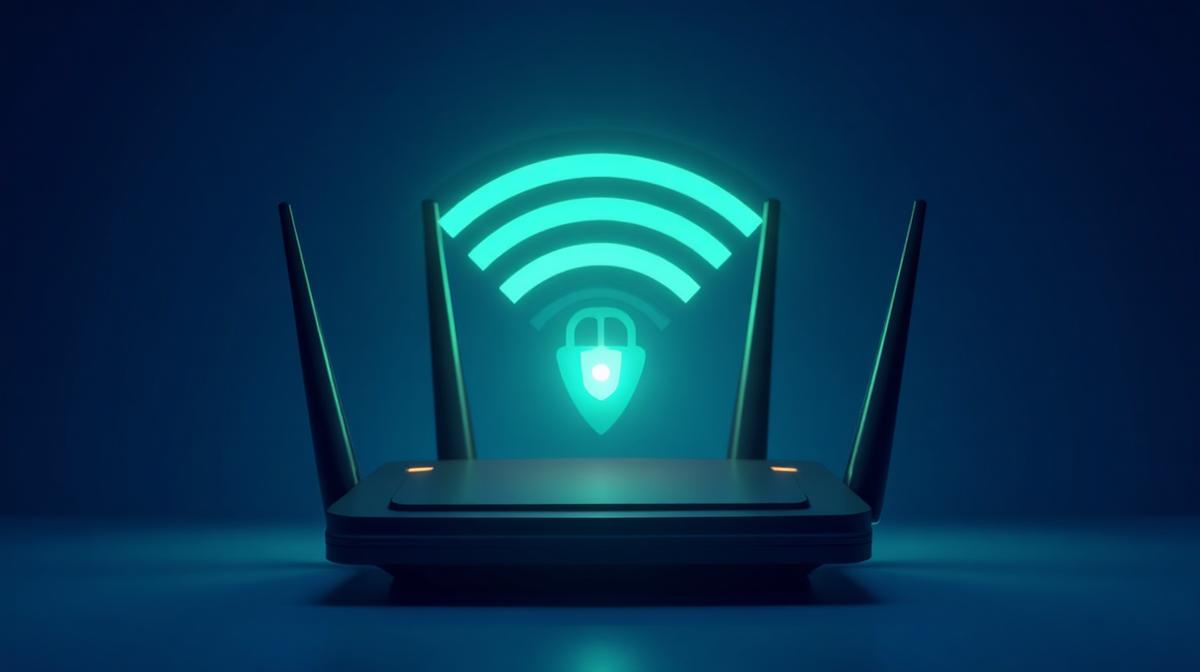
1. Módosítsa az alapértelmezett útválasztó jelszavát
A legtöbb útválasztó olyan alapértelmezett hitelesítő adatokkal érkezik, mint az admin/admin vagy admin/password. A támadók ismerik ezeket az alapértelmezéseket, és távolról hozzáférhetnek az útválasztó adminisztrációs paneljéhez.
- Hozzon létre egy egyedi, erős jelszót az útválasztó adminisztrációs paneljéhez (ne a Wi-Fi jelszót – a router bejelentkezési adatait).
- Használjon legalább 16 karaktert vegyes kis- és nagybetűkkel, számokkal és szimbólumokkal.
- Soha ne használja Wi-Fi jelszavát az útválasztó rendszergazdai jelszavaként.
Tipp: Használjon jelszógenerátort egy igazán véletlenszerű útválasztó jelszó létrehozásához. Másolja ki és tárolja biztonságos helyen – nem kell gyakran gépelnie.
2. WPA3 (vagy WPA2-AES) titkosítás használata
A Wi-Fi titkosítás határozza meg, hogyan védik az adatokat az eszköz és az útválasztó között. A szabványok a legrosszabbtól a legjobbig:
| Protokoll | Biztonsági szint | Ajánlás |
|---|---|---|
| WEP | ❌ Törött | Soha ne használja – percek alatt feltörve | [[
| WPA | ⚠️ Gyenge | Kerülje – támadásokkal szemben sebezhető | [6]
| WPA2-TKIP | ⚠️ Elavult | Használja helyette AES módot | [4]
| WPA2-AES | ✅ Jó | Minimális ajánlott szabvány[[ |
| WPA3 | ✅ Legjobb | Használja, ha az útválasztója támogatja | 11
Ellenőrizze a router beállítási oldalát (általában a 192.168.0.1 vagy 192.168.1.1), és győződjön meg róla, hogy W vagy [[]WPA2-[][]
3. Hozzon létre egy erős Wi-Fi jelszót
A Wi-Fi jelszava elkülönül a router rendszergazdai jelszavától. Magát a hálózatot védi.
- A hossz a legfontosabb: Használjon legalább 16-20 karaktert.
- Kerülje a személyes adatokat: Nincs cím, név vagy telefonszám.
- Véletlenszerű generálás használata: Egy véletlenszerű jelszó, mint a
kX9$mQ2!wL7#pR4&, végtelenül erősebb, mintMyHomeWiFi2026.
4. A WPS (Wi-Fi Protected Setup) letiltása
AWPS-t a kényelemre tervezték – a csatlakozáshoz nyomjon meg egy gombot, vagy írjon be egy rövid PIN-kódot. De a 8 számjegyű PIN-kód órák alatt brutálisan kikényszeríthető. Mindig tiltsa le a WPS-t az útválasztó beállításainál.
5. Frissítse a router firmware-jét
A routergyártók rendszeresen javítják a biztonsági réseket. Egy elavult router könnyű célpont.
- Jelentkezzen be az útválasztó adminisztrációs paneljébe.
- Ellenőrizze a firmware-frissítéseket (általában a "Rendszer" vagy "Adminisztráció" alatt).
- Ha elérhető, engedélyezze az automatikus frissítéseket.
- Ha az útválasztó 5 évesnél idősebb, és már nem kap frissítéseket, fontolja meg a cseréjét.
6. Vendéghálózat beállítása
A legtöbb modern útválasztó támogatja a vendéghálózatokat. Ez külön Wi-Fi-t hoz létre a látogatók számára, amely el van szigetelve a fő hálózatától.
- A vendégeszközök nem látják az Ön számítógépét, NAS-ját vagy intelligens otthoni eszközeit.
- Állítson be másik jelszót a vendéghálózathoz.
- Engedélyezze a kliens elkülönítést, hogy a vendégeszközök ne tudjanak kommunikálni egymással.
7. Távkezelés letiltása
A távfelügyelet lehetővé teszi az útválasztó adminisztrációs paneljének elérését a hálózaton kívülről. Hacsak nincs rá konkrét igényed, kapcsold ki . Ez az egyik leggyakoribb támadási vektor.
8. A csatlakoztatott eszközök figyelése
Rendszeresen ellenőrizze a csatlakoztatott eszközök listáját az útválasztó adminisztrációs paneljén. Ha ismeretlen eszközöket lát:
- Azonnal változtassa meg Wi-Fi jelszavát.
- Ellenőrizze az ismeretlen MAC-címeket.
- Fontolja meg a MAC-szűrés engedélyezését, hogy további vezérlési réteget kapjon.
Gyakran Ismételt Kérdések
Mi a legbiztonságosabb Wi-Fi titkosítás?
A WPA3 jelenleg a legbiztonságosabb Wi-Fi titkosítási szabvány. Ha az útválasztó nem támogatja a WPA3-at, használja a WPA2-t AES titkosítással. Soha ne használjon WEP-et, és ne hagyja nyitva a hálózatot.
Milyen gyakran kell megváltoztatnom a Wi-Fi jelszavamat?
Cserélje Wi-Fi jelszavát 6-12 havonta, vagy azonnal, ha jogosulatlan hozzáférés gyanúja merül fel. Mindig erős, véletlenszerű, legalább 16 karakterből álló jelszót használjon.
Elrejtsem a Wi-Fi hálózatom nevét (SSID)?
Az SSID elrejtése minimális biztonsági előnnyel jár. Az elszánt támadók továbbra is könnyen elérhető eszközökkel fedezhetik fel a rejtett hálózatokat. Inkább az erős titkosításra és a jelszavakra összpontosítson.
Kapcsolódó eszközök
- Jelszógenerátor — Hozzon létre egy erős Wi-Fi jelszót
- PIN-generátor — Biztonságos PIN-kódok generálása a WPS útválasztóhoz
- QR-kód generátor — Ossza meg Wi-Fi jelszavát QR-kóddal